

FANUC Rectangular Groove Cycle Program Explained
This article uses a short, easy-to-follow FANUC program to move a tool continuously around a rectangular path and automatically increase the part count by 1 after each lap. The example is primarily for teaching with the CNC GUIDE simulator: observe how coordinates, feed override, loop returns, and system variables behave.
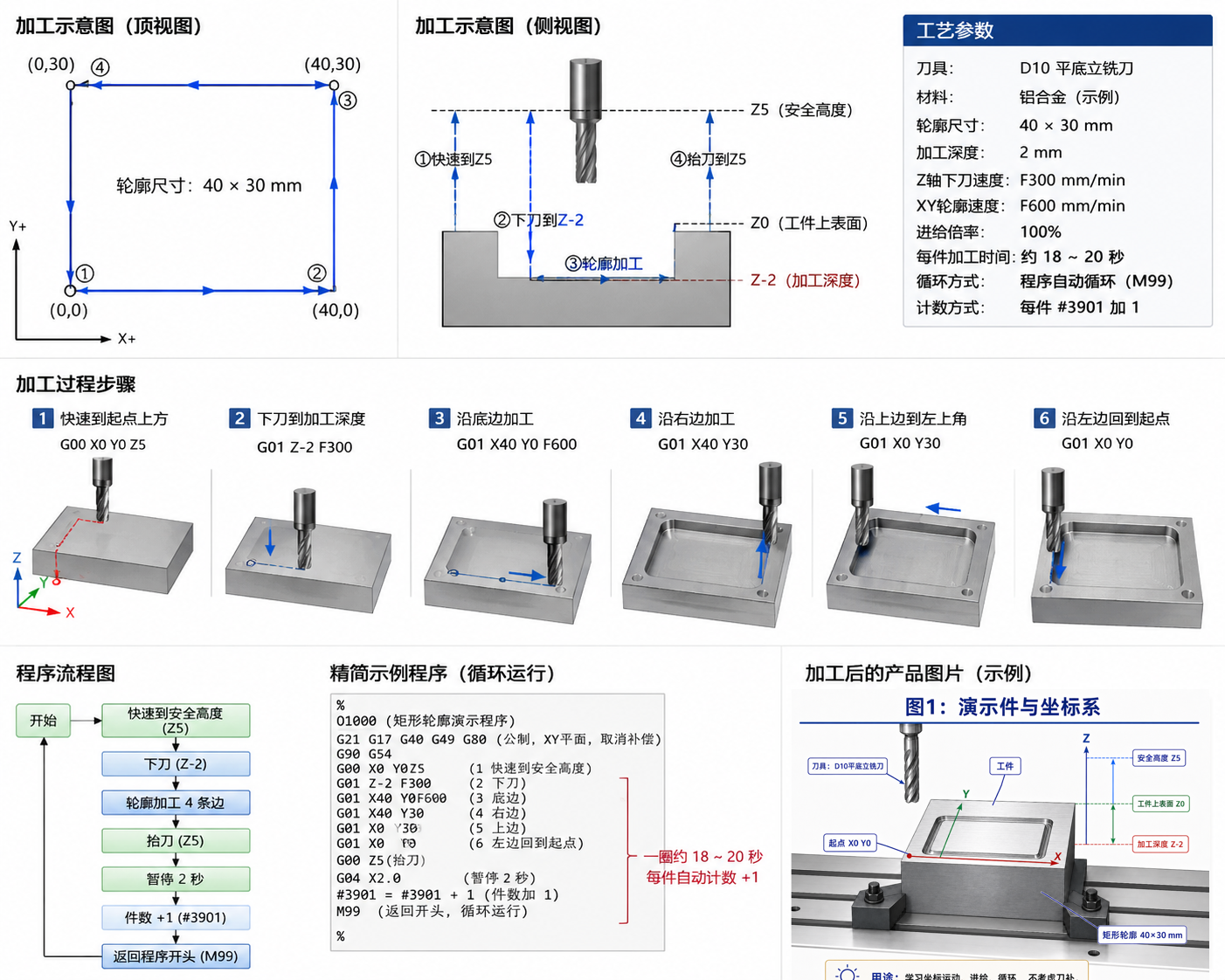
Figure: The overview combines the top-view path, side-view depth, machining parameters, steps, loop flow, and compact sample program to establish the overall picture.
Safety Notice
This program is for simulator training. It omits spindle start, coolant, tool length compensation, cutter radius compensation, and the full safety checks required for actual machining. Before running on a real machine, revalidate it against the machine builder's manual, fixture and tool conditions, and site safety procedures.
1. What Does This Program Actually Machine?
This program does not mill out the entire interior of the rectangle.
It moves the tool center once around a 40 × 30 mm rectangle, producing a closed rectangular groove.
- Tool-center path:
40 × 30 mm - Cutting depth:
2 mm - Suggested demonstration tool:
D10 flat end mill - Groove width: approximately the tool diameter, or
10 mm - Four groove corners: rounded by the tool radius
- Inside the rectangle: the original material remains; it is not milled away
Important distinction
- One lap produces a rectangular groove.
- Multiple laps offset progressively inward are needed to remove the interior and make a rectangular pocket.
Diagram of the Finished Rectangular Groove
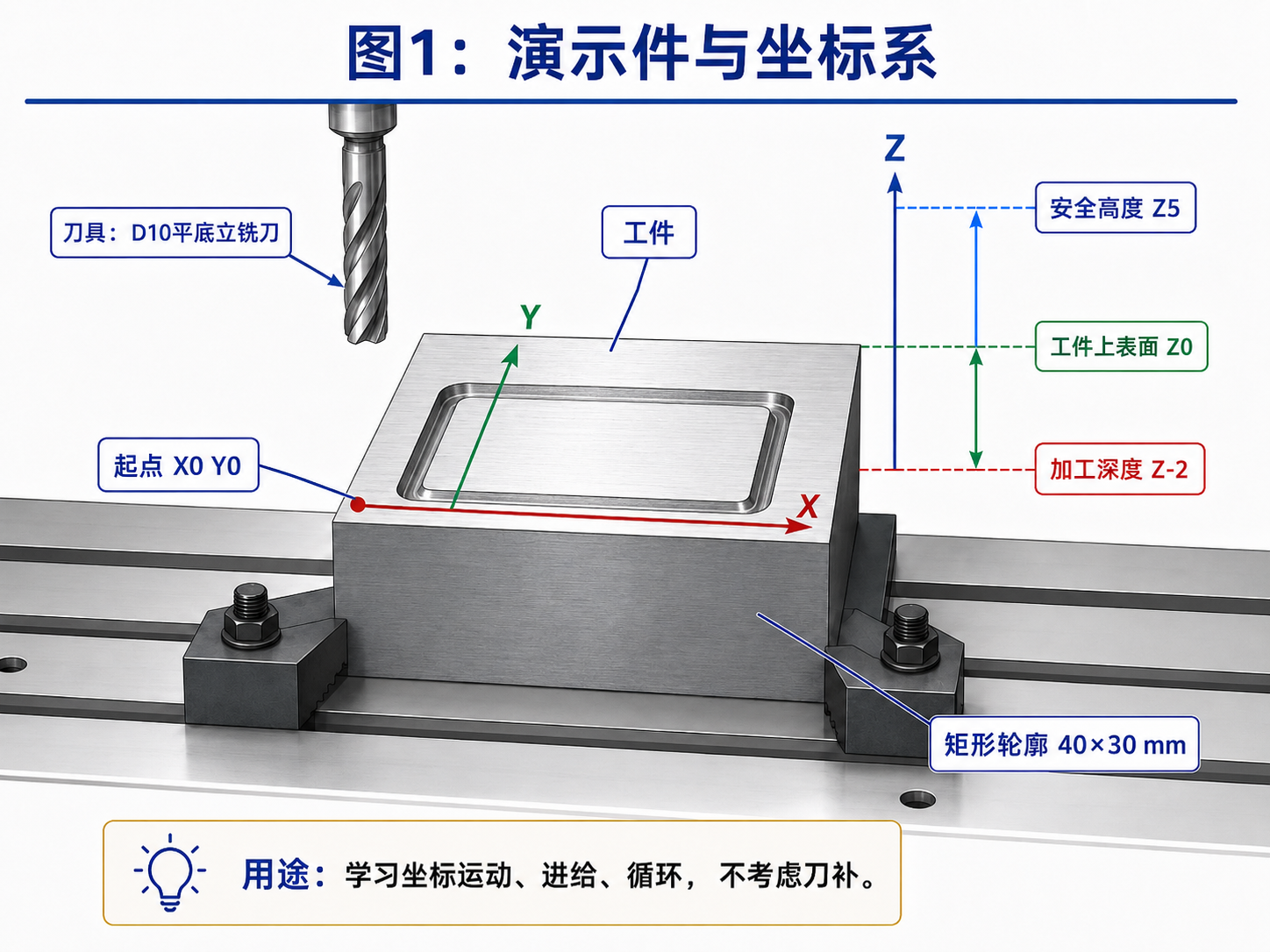
Figure: After the D10 flat end mill follows the rectangular centerline once, it leaves a groove whose centerline measures about 40 × 30 mm, starting at X0 Y0.
┌──────────────────────────────┐
│                              │
│   ┌──────────────────────┐   │
│   │  Material remains    │   │
│   └──────────────────────┘   │
│                              │
└──────────────────────────────┘
Diagram: The tool follows the rectangular centerline only once, forming a closed groove; material inside the rectangle remains.
2. Final Compact Program
%
O1000(RECTANGLE LOOP DEMO)
(TOOL PATH 40X30 DEPTH 2)

G21 G17 G40 G49 G80 G90 G94 G54
#3901=0(PART COUNT RESET)

G00 Z5.(SAFE HEIGHT)
G00 X0.Y0.(START POINT)

N10 G01 Z-2.F300.(PLUNGE)
G01 X40.Y0.F600.(EDGE 1)
Y30.(EDGE 2)
X0.(EDGE 3)
Y0.(EDGE 4)

G00 Z5.(RETRACT)
#3901=#3901+1(PART COUNT +1)
G04 X2.(WAIT 2 SECONDS)
M99 P10(RETURN TO N10)

%
This is a demonstration program for learning with CNC GUIDE and observing coordinate changes. It deliberately omits tool changes, spindle start, coolant, tool length compensation, and cutter radius compensation so that the fundamental motion, feed, looping, and counting behavior is easier to understand.
3. Coordinates and Tool Path
The program uses absolute coordinates (G90) and assumes:
| Position | Coordinate |
|---|---|
| Top of workpiece | Z0 |
| Safe height | Z5 |
| Cutting depth | Z-2 |
| Rectangle start | X0 Y0 |
| First corner | X40 Y0 |
| Second corner | X40 Y30 |
| Third corner | X0 Y30 |
| Return to start | X0 Y0 |
The tool-center path from above is:
             X40 Y30
       ④ <──────── ③
       │             ↑
       │             │
       ↓             │
X0 Y0 ① ─────────> ② X40 Y0
Motion sequence:
- Move the tool to safe height
Z5. - Rapidly move to the rectangle start at
X0 Y0. - Plunge to
Z-2atF300. - Move along the four edges at
F600. - Retract to
Z5after one lap. - Increase the part count by 1.
- Dwell for 2 seconds.
- Return to
N10to start the next lap automatically.
Coordinate System and Path Diagram
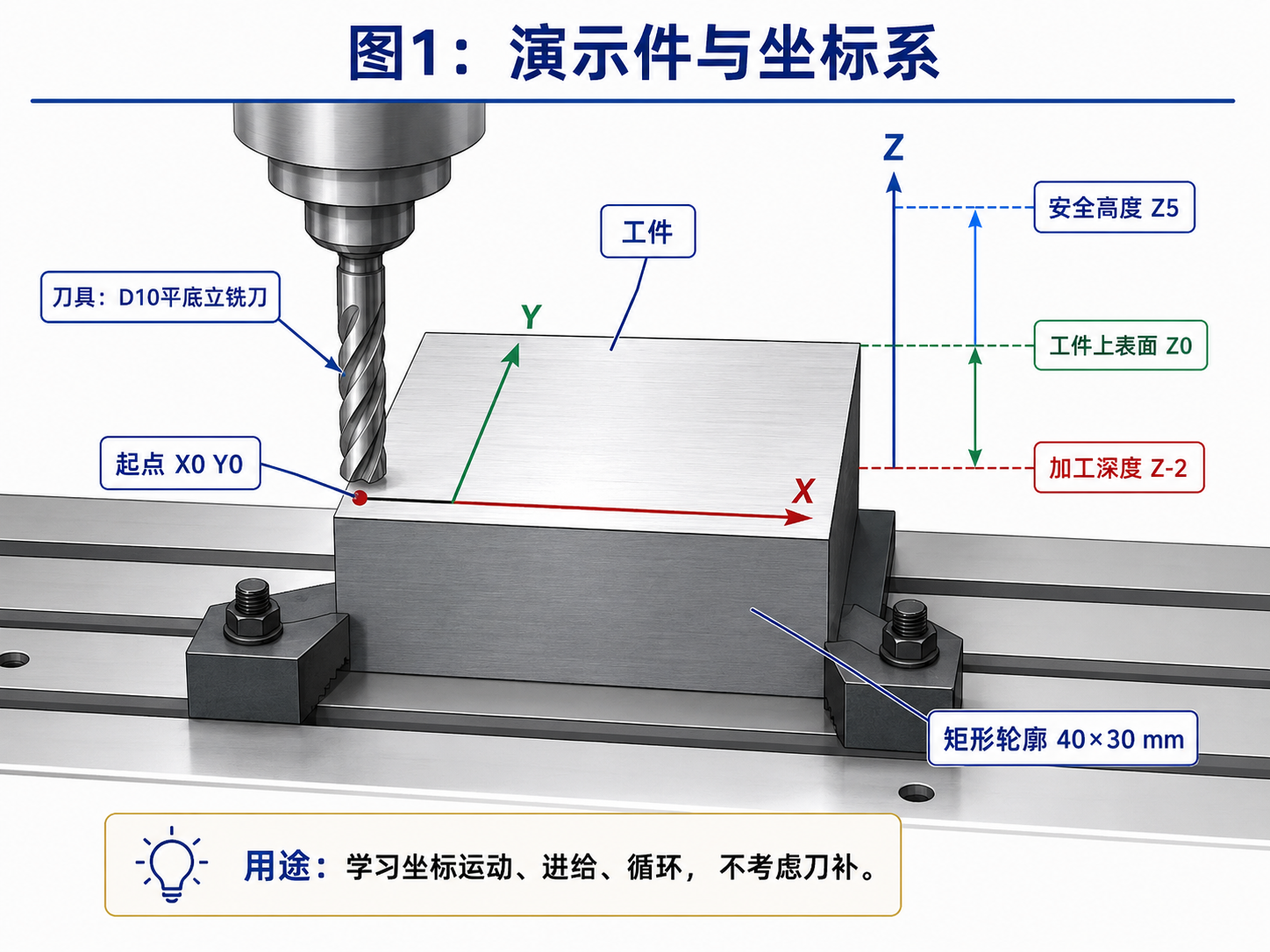
Figure: The workpiece top is Z0, safe height is Z5, cutting depth is Z-2, and the rectangular path begins at X0 Y0.
Z+
↑
│      Safe height: Z5
│      ─────────
│
│      Workpiece top: Z0
│      ─────────
│
│      Cutting depth: Z-2
│      ─────────
└────────────────→ X+
Diagram: The program first moves to the start at safe height, plunges to Z-2, then follows the rectangular path in the XY plane.
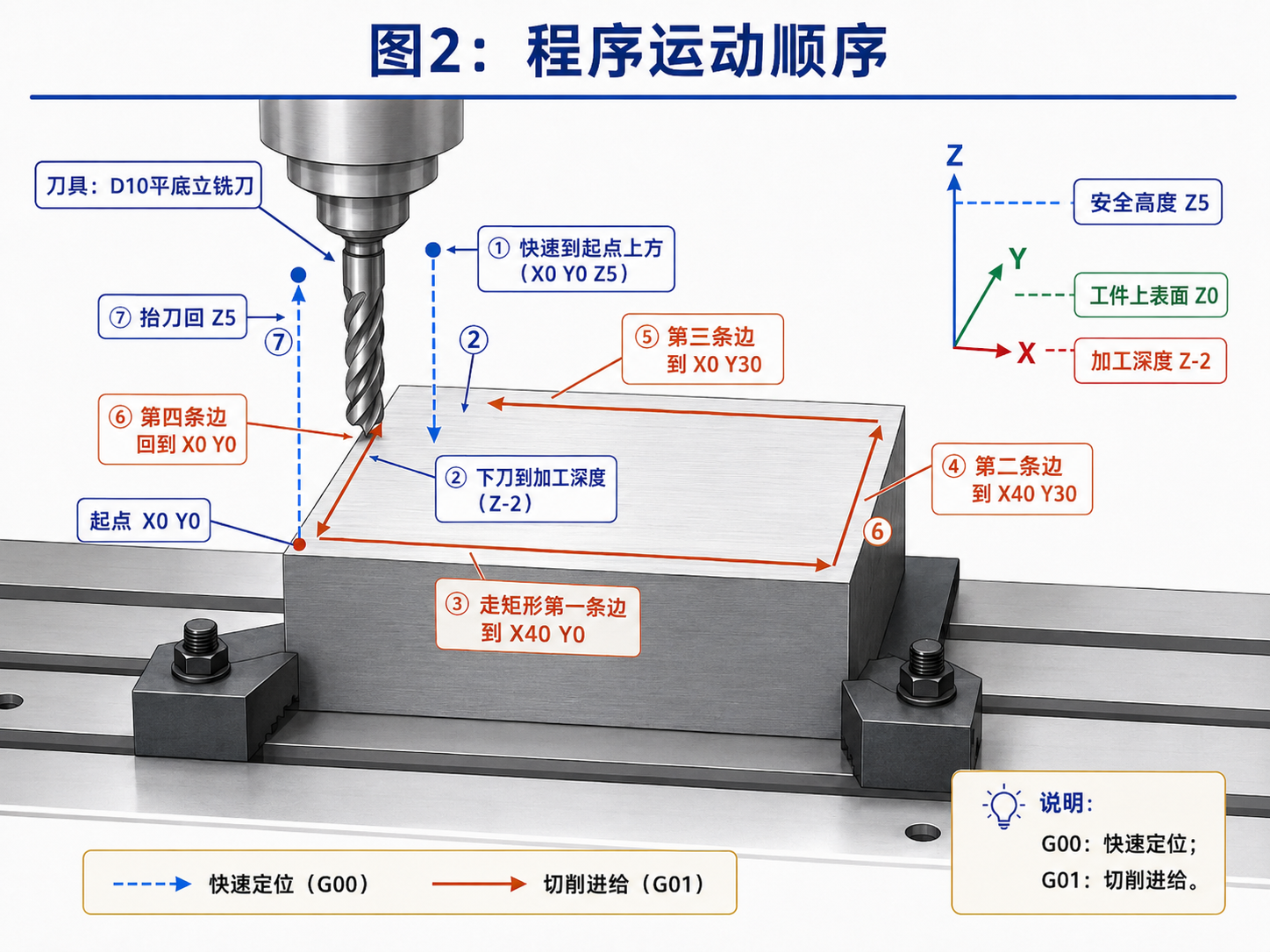
Figure: Blue dashed lines indicate
G00rapid positioning and retract; solid red lines indicateG01cutting feed. The program plunges, machines four edges, and retracts in sequence.
4. Line-by-Line Explanation
4.1 Program Start and Program Number
%
O1000(RECTANGLE LOOP DEMO)
(TOOL PATH 40X30 DEPTH 2)
%
Marks the beginning of the program file. Another % at the end marks the end of the file.
O1000
The program number is 1000.
Traditional FANUC programs usually use:
O + numberFor example:
O0001
O0100
O1000
The current CNC GUIDE also supports program names such as <SAMPLE> and <Woody001>, but O1000 follows traditional FANUC conventions.
Parenthesized Text
(RECTANGLE LOOP DEMO)
(TOOL PATH 40X30 DEPTH 2)
Text in parentheses is a comment and is not executed.
4.2 Initialize Machining Modes
G21 G17 G40 G49 G80 G90 G94 G54This line sets several modal states at once:
| Instruction | Function |
|---|---|
G21 | Use millimeters as the length unit |
G17 | Select the XY plane |
G40 | Cancel cutter radius compensation |
G49 | Cancel tool length compensation |
G80 | Cancel drilling and other canned cycles |
G90 | Use absolute coordinate programming |
G94 | Set feed units to mm/min |
G54 | Use the first work coordinate system |
G90 is particularly easy to misunderstand.
Under G90:
X40.means move to absolute coordinate X=40, not another 40 mm from the current position.
4.3 Reset the Part Count
#3901=0(PART COUNT RESET)#3901 is the FANUC system variable for the part count.
This line resets it to zero:
#3901 = 0It runs only when the program is first started from the beginning.
The subsequent loop uses:
M99 P10to jump directly back to N10, so the reset is not executed again.
If CNC GUIDE raises a macro-variable alarm here, temporarily remove both lines containing
#3901. The program can still loop, but it will no longer increment the part count automatically.
4.4 Retract to Safe Height
G00 Z5.(SAFE HEIGHT)G00 means rapid positioning.
This line rapidly moves the Z axis to:
Z = 5 mmSince the workpiece top is Z0, Z5 puts the tool tip 5 mm above the top surface.
Moving Z up before moving X and Y reduces the risk of hitting the workpiece during rapid lateral motion.
4.5 Rapid Move to the Rectangle Start
G00 X0.Y0.(START POINT)The tool remains at safe height Z5 and moves rapidly to:
X = 0
Y = 0
This is the lower-left corner of the path and the start of every lap.
4.6 Loop Start and Plunge
N10 G01 Z-2.F300.(PLUNGE)This block has four parts:
| Part | Meaning |
|---|---|
N10 | Block number 10 |
G01 | Linear cutting feed |
Z-2. | Move to absolute coordinate Z=-2 |
F300. | Feed rate of 300 mm/min |
The tool descends from:
Z5to:
Z-2The total travel is 7 mm.
Theoretical plunge time:
7 ÷ 300 × 60 = 1.4 secondsN10 is the loop return point. After each lap, M99 P10 returns here.
4.7 Machine the First Edge
G01 X40.Y0.F600.(EDGE 1)The tool moves from:
X0 Y0to:
X40 Y0That is 40 mm in the positive X direction.
This line also changes the contour feed rate to:
F600 mm/min4.8 Machine the Second Edge
Y30.(EDGE 2)G01 and F600 are modal, so they do not need to be repeated on each line.
The tool moves from:
X40 Y0to:
X40 Y30No X is specified here, so X stays at 40.
4.9 Machine the Third Edge
X0.(EDGE 3)The tool moves from:
X40 Y30to:
X0 Y30No Y is specified, so Y stays at 30.
4.10 Machine the Fourth Edge
Y0.(EDGE 4)The tool moves from:
X0 Y30to:
X0 Y0All four edges are now complete, and the tool is back at its starting point.
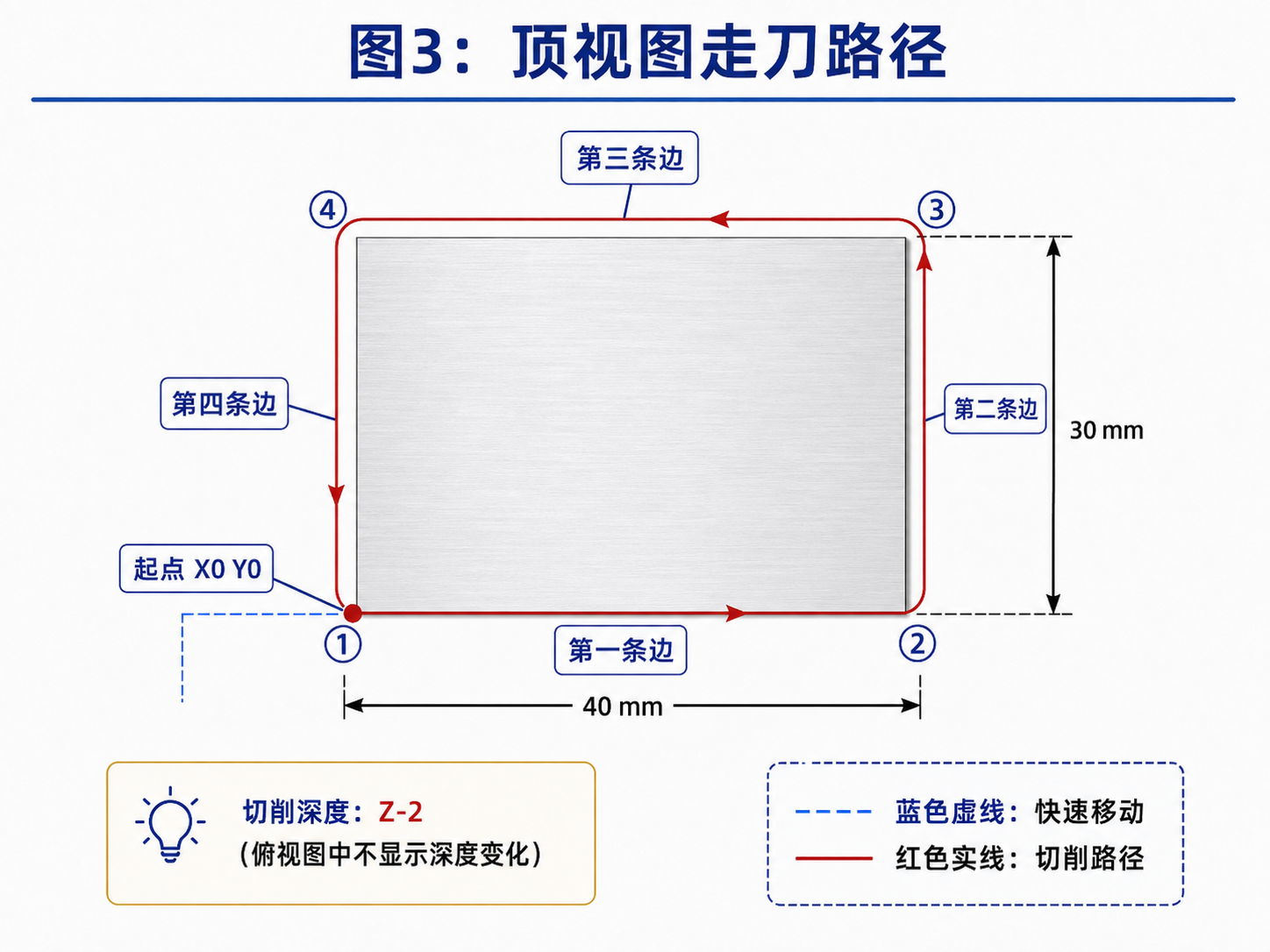
Figure: The solid red line in the top view is the cutting path. The tool center travels through X0 Y0, X40 Y0, X40 Y30, and X0 Y30, then returns to X0 Y0.
4.11 Retract
G00 Z5.(RETRACT)The tool rapidly retracts from cutting depth:
Z-2to:
Z5The tool is already back at X0 Y0, so it can safely begin another lap after retracting.
4.12 Increment the Part Count
#3901=#3901+1(PART COUNT +1)This is equivalent to:
Current part count = current part count + 1For example, if the current count is 7:
#3901 = 7 + 1
#3901 = 8
The part count displayed on the CNC therefore increases by 1 after every lap.
Here, “one completed rectangular groove lap” is treated as “one completed part.”
4.13 Dwell for Two Seconds
G04 X2.(WAIT 2 SECONDS)G04 indicates a dwell.
X2. means a pause of about 2 seconds.
The pause helps you:
- Observe the increased part count.
- See a clear interval between laps.
- Understand the program's execution rhythm.
4.14 Return to the Loop Start
M99 P10(RETURN TO N10)This instruction returns the program to:
N10The program therefore does not finish; it loops indefinitely:
N10 plunge
→ Machine four edges
→ Retract
→ Increment part count by 1
→ Dwell for 2 seconds
→ Return to N10
Press Cycle Start (CST) once and the program keeps repeating until it is manually stopped or reset.
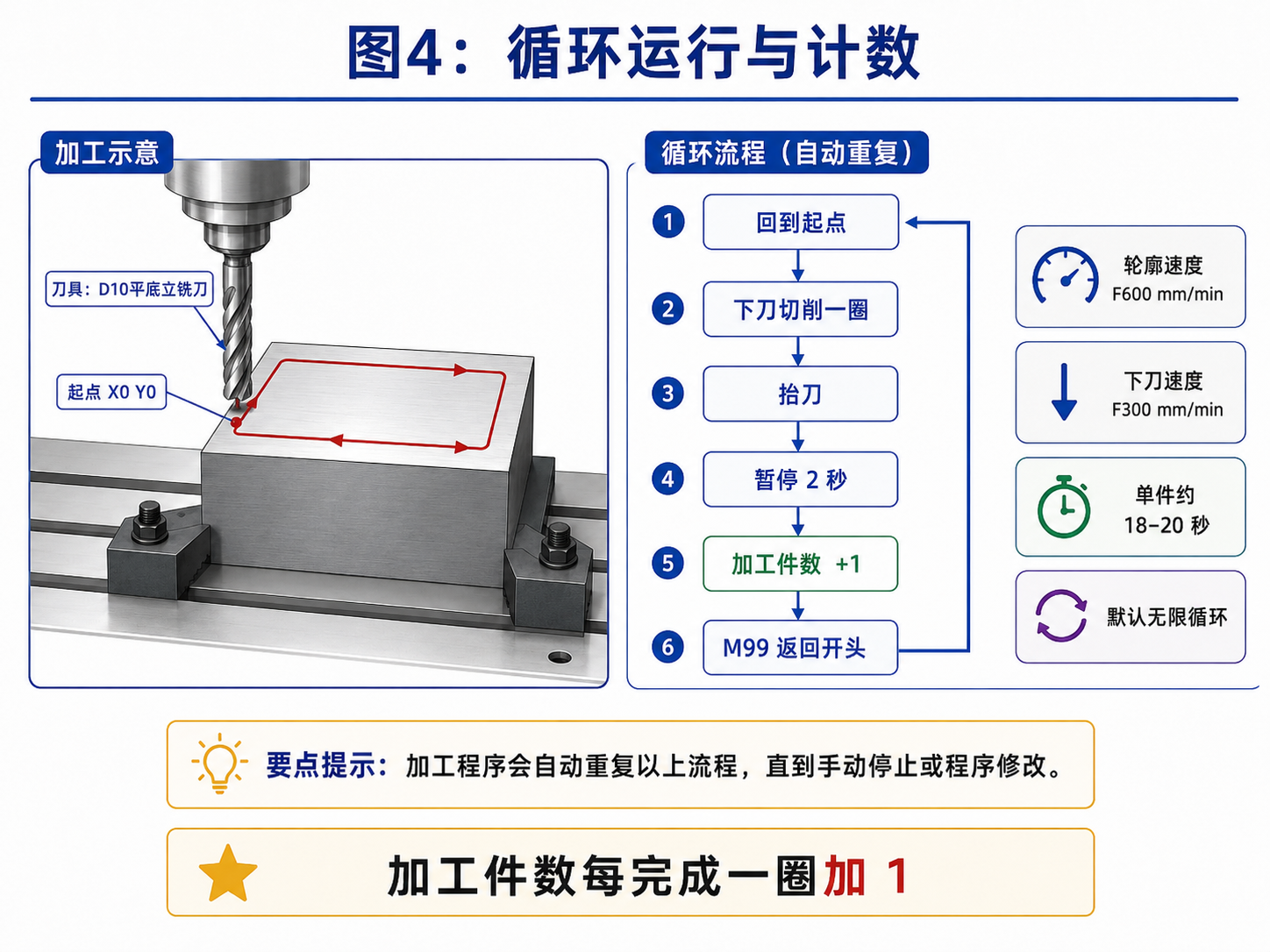
Figure: After each lap, the tool retracts, the part count increases by 1, the program pauses, and
M99returns execution to the loop start.
5. How Long Does Each Lap Take?
Rectangle perimeter:
40 + 30 + 40 + 30 = 140 mmThe XY contour uses:
F600 mm/minTheoretical contour time:
140 ÷ 600 × 60 = 14 secondsThe plunge distance is 7 mm at:
F300 mm/minTheoretical plunge time:
7 ÷ 300 × 60 = 1.4 secondsThe program also dwells for 2 seconds, so the theoretical total is about:
14 + 1.4 + 2 = 17.4 secondsAllowing for rapid motion, axis acceleration and deceleration, and controller processing, the actual time is roughly:
18–20 seconds/lapThis assumes the panel feed override is 100%.
6. How Does Feed Override Affect Execution?
In the program:
F300.
F600.
are programmed feed rates.
The feed override on the operator panel further adjusts the actual speed.
For example, when executing F600:
| Panel feed override | Actual feed rate |
|---|---|
| 100% | About 600 mm/min |
| 50% | About 300 mm/min |
| 25% | About 150 mm/min |
| 0% | 0 mm/min; coordinates stop changing |
At 0% override, the following can be misleading:
- The program appears to have started.
- Elapsed running time continues to increase.
- The current program state is
STRTorMTN. - Coordinates remain fixed on a
G01instruction. - The actual
Fdisplayed on the screen is 0.
The program is running; the override has simply locked cutting feed to 0%.
7. The Tool-Center Path Is Not the Groove's Outer Dimension
The programmed dimension:
40 × 30 mmdescribes the rectangle traced by the tool center, not the final outer boundary of the groove.
With a D10 end mill:
- Tool radius is 5 mm.
- Groove width is about 10 mm.
- The tool cuts about 5 mm on each side of its centerline.
- The four corners have a radius of approximately R5.
Without cutter radius compensation, this program cannot simply be interpreted as cutting a groove with outside dimensions of exactly 40 × 30 mm.
This is why it includes:
G40and explicitly excludes cutter compensation from the example.
8. Why Isn't the Interior Milled Out?
The program has only four XY straight-line moves:
G01 X40.Y0.
Y30.
X0.
Y0.
The tool makes only one lap around the rectangular boundary.
There are no toolpath instructions through the middle, so the material there remains.
To mill a complete rectangular pocket, add multiple paths offset inward, for example:
Outer lap
→ Offset inward by a distance
→ Second lap
→ Offset inward again
→ Third lap
→ Continue until the center is covered
Other approaches include:
- Parallel back-and-forth passes.
- An inward spiral path.
- A pocket toolpath generated by CAM software.
- A FANUC macro that calculates successive laps automatically.
Those are beyond the scope of this minimal example program.
9. Running the Program in CNC GUIDE
9.1 Import or Enter the Program
Save the program as a text file, or create O1000 in CNC GUIDE and enter the program.
9.2 Set It as the Current Main Program
In the program directory:
- Move the cursor to
O1000. - Select “Operation.”
- Select “Main Program” or “Main Program Selection.”
- Confirm that
O1000appears at the top of the screen.
9.3 Release the Emergency Stop
If the bottom of the screen shows:
--EMG--then:
- Click
ESPon the I/O panel to release the emergency stop. - Press
RESETon the physical panel. - Confirm that
--EMG--disappears.
9.4 Set the Feed Override
Ensure the FOV combination on the right-side I/O panel is not 0%.
For testing, the recommended setting is:
100%You can start at a lower override to observe coordinate changes.
9.5 Start the Program
- Click
AUTOto enter automatic mode. - Confirm that
SSBKsingle-block mode is off. - Click
CST(Cycle Start). - Watch X, Y, Z, and the part count change.
10. What Should You See During Normal Operation?
After starting, coordinates should change roughly as follows:
Z: 5 → -2
X: 0 → 40
Y: 0 → 30
X: 40 → 0
Y: 30 → 0
Z: -2 → 5
Then:
Part count +1
Dwell 2 seconds
Plunge again
During the loop:
- X varies between 0 and 40.
- Y varies between 0 and 30.
- Z varies between 5 and -2.
- The part count increases by 1 each lap.
- Elapsed running time continues increasing.
- The program does not end with
M30.
11. How to Stop
Normal Pause
Use:
Feed Hold / CSPThis pauses the current feed motion.
End the Loop
Press:
RESETThis terminates the running program and clears its loop state.
Emergency
Use:
ESPEmergency stop is for emergencies only; it should not be used as a routine program stop button.
12. Troubleshooting
12.1 Running Time Increases, but Coordinates Do Not Move
The most common reason is a feed override of 0%.
Check:
Is the actual F on screen 0 mm/min?
Is FOV on the right set to 0%?
The program may have finished G00 rapid positioning and be waiting at:
G01 Z-2.F300.for a nonzero cutting feed override.
12.2 Alarm at #3901
The relevant macro-variable feature may not be enabled in the current configuration.
First remove:
#3901=0
#3901=#3901+1
The program still loops, but the part count no longer increases automatically.
12.3 Program Stops After One Block
Check whether this is enabled:
SSBKThis is single-block mode. When enabled, each block requires another press of Cycle Start.
12.4 Nothing Happens After Clicking CST
Check:
- Is the controller in
AUTOmode? - Is
--EMG--still present? - Are there other alarms?
- Is
O1000the current main program? - Is
CSPin a stopped state? - Is feed override set to 0%?
12.5 Why Doesn't the Program Start the Spindle?
This is a coordinate-motion teaching program and deliberately omits:
T1 M06
S2000 M03
M08
G43 H01
These instructions can depend on:
- A tool-change completion signal.
- A spindle-start completion signal.
- PMC configuration.
- Tool length compensation values.
- Coolant control signals.
Adding them introduces more variables and potential alarms for beginners.
It is better to understand coordinates, feed, loops, and counting first, then add complete machine operations gradually.
13. Basic Concepts This Program Teaches
This short program covers:
O1000: a traditional FANUC program number.G90: absolute coordinates.G00: rapid positioning.G01: linear cutting feed.F: programmed feed rate.G54: work coordinate system.N10: block number.G04: dwell.#3901: part-count variable.M99 P10: return to a specified block and loop.- Modal instructions: why subsequent lines can omit
G01andF600. - Feed override: the relationship between programmed speed and panel override.
- The difference between the tool-center path and the actual machined contour.
14. The Entire Program in One Sentence
The tool moves from safe height to the lower-left corner, plunges 2 mm, traces the 40 × 30 mm rectangular centerline at 600 mm/min, retracts, increments the part count by 1, waits 2 seconds, then repeats automatically.
15. Safety Reminders
This program is primarily for teaching with the CNC GUIDE simulator.
Before running it on a real machine, verify that:
- The G54 work coordinate system is set correctly.
- The tool and workpiece positions are correct.
- Z0 is indeed the top of the workpiece.
Z5provides enough clearance.Z-2will not collide with the fixture.- The X/Y path stays within the workpiece material.
- The tool is properly clamped and the spindle is running.
- The first run is validated in single-block mode, dry run, and at low override.
- The infinite loop will not leave the machine running unattended.
This example lacks tool length compensation and spindle control and must not be used for real machining without modification. First verify its coordinates, loop logic, and part-count behavior in CNC GUIDE, then gradually add tool changes, spindle, coolant, compensation, and an exit condition to build a complete program for the specific machine.