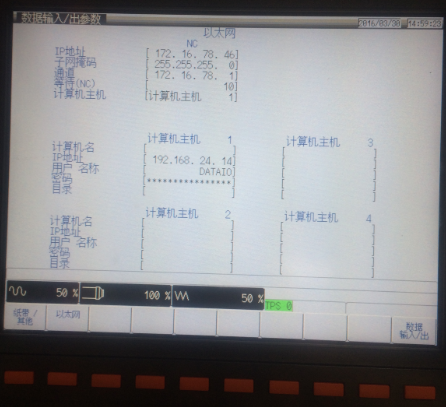

Setting the IP Address on a Mazak Smart CNC
Step 1
Use the keys to reach the screen in Figure 1. Press the Data Input/Output button indicated by the arrow to open the Data Input/Output screen.
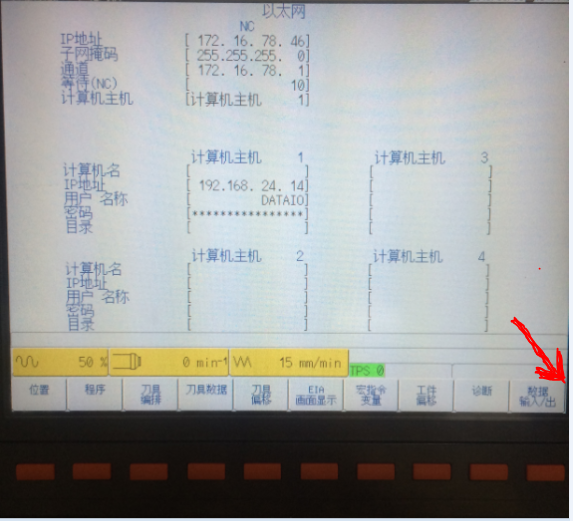
Step 2
On the Data Input/Output screen, one of the following cases applies:
- If neither the Input/Output Parameter Settings nor Ethernet button is visible, as shown below, go to Step 3.
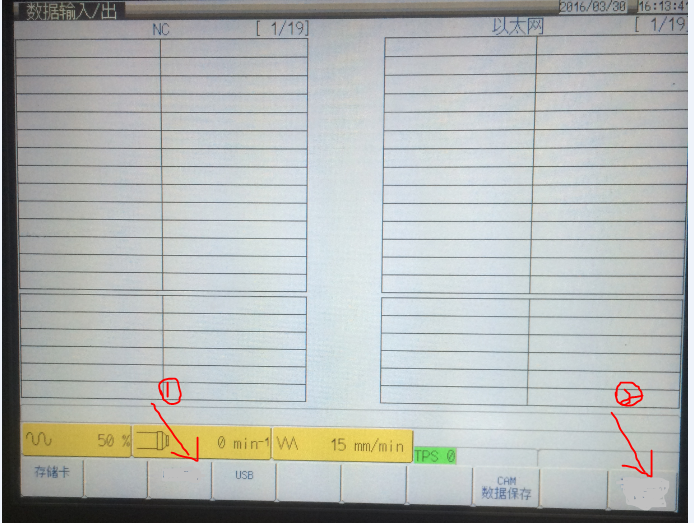
- If the Input/Output Parameter Settings button is visible but Ethernet is hidden, go to Step 4.
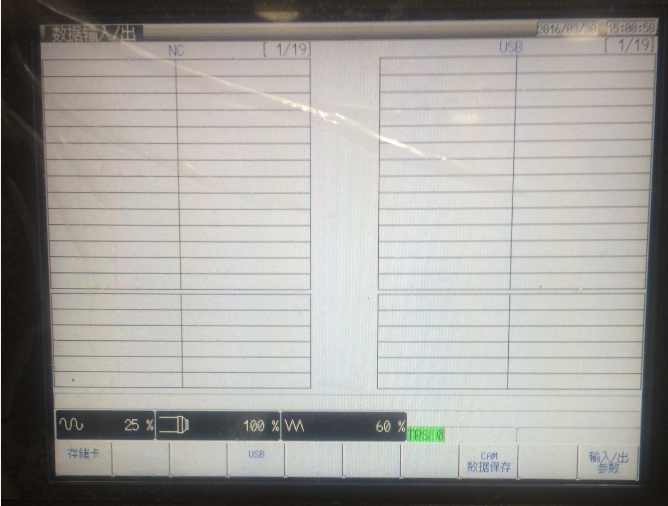
- If both the Input/Output Parameter Settings and Ethernet buttons are visible, go to Step 5.
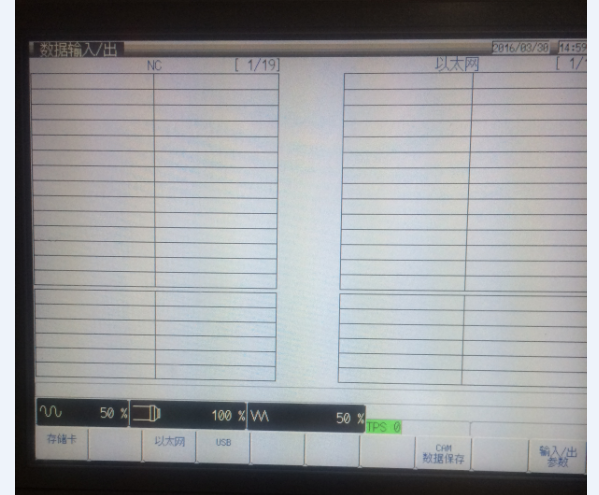
Step 3
Use the left and right keys on the screen to reach the screen shown below.
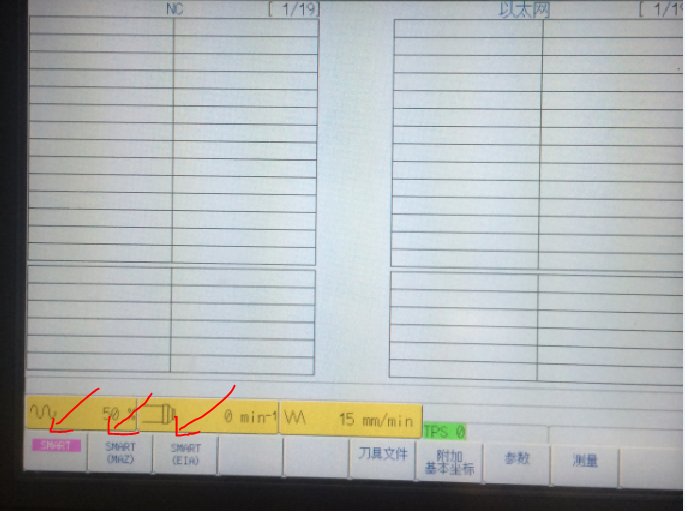
If any of the three buttons at the left of the panel are pink, press the corresponding keys to turn them gray, as shown below.
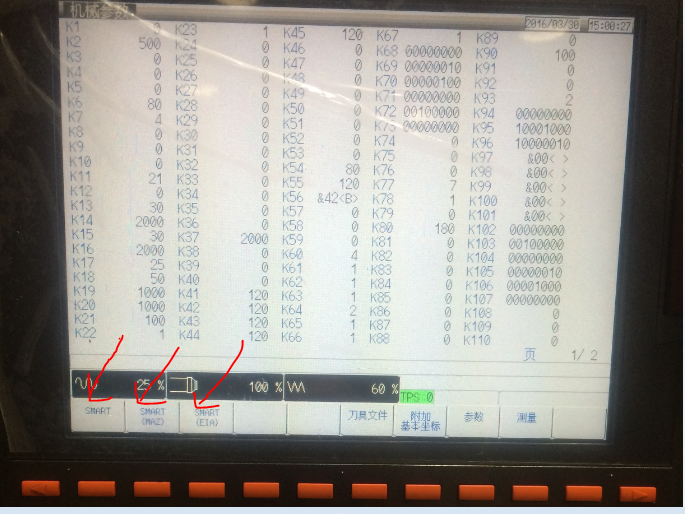
Press Parameters to open the screen below.
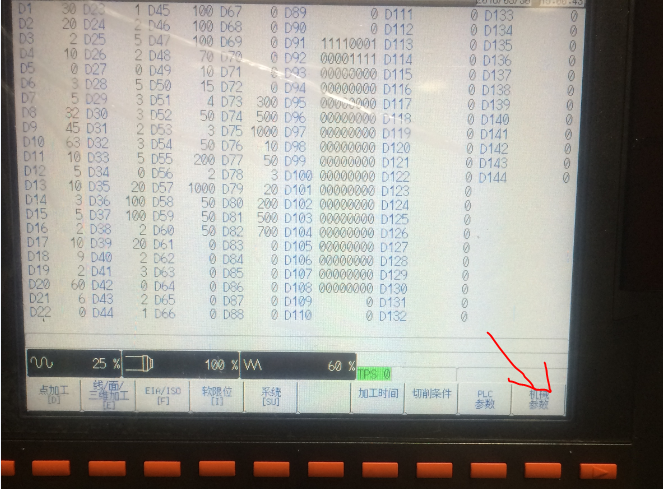
Press Machine Parameters to open its settings screen, shown below.
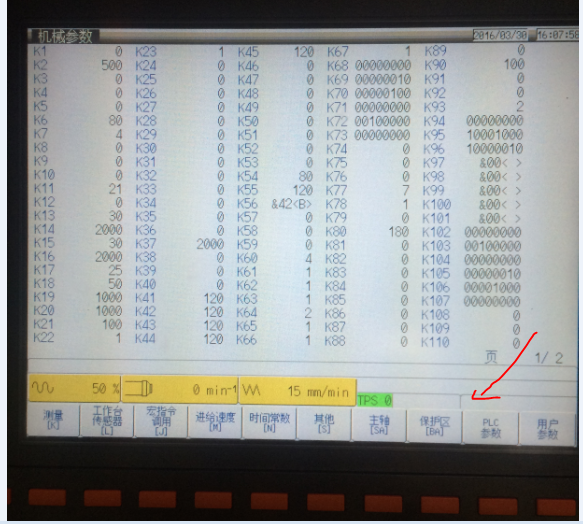
Press the “—》” right key on the machine keyboard to move the cursor to the area indicated by the arrow in Figure 8. Enter 1131 there and press “input” to enter the parameter. Go to Step 4. Restart the machine to complete the Input/Output Parameter setup.
Step 4
Open the screen shown below.
Press Input/Output Parameters to open the following screen.
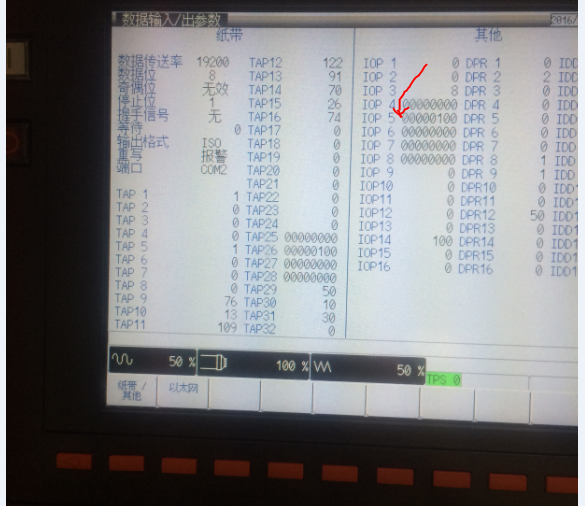
Use the arrow keys on the machine keyboard to place the cursor on IOP5. Enter “0000 0100” in the input area and press “input” to set IOP5. Restart the machine to enable the Ethernet button.
Step 5
Open the screen shown below.
Press Ethernet as shown below.
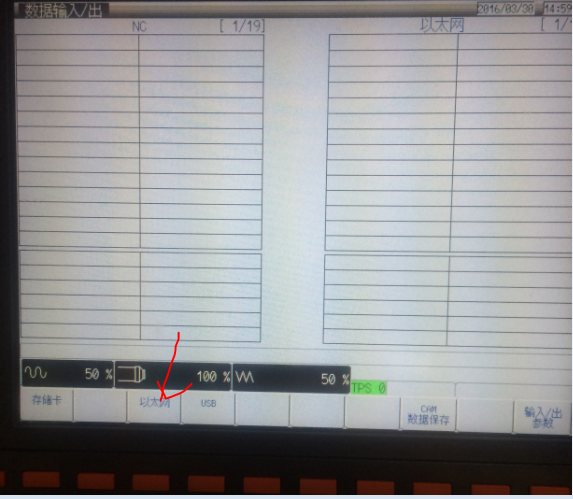
The Ethernet settings screen appears as shown below.